



Comparación iPhone XR vs iPhone XS
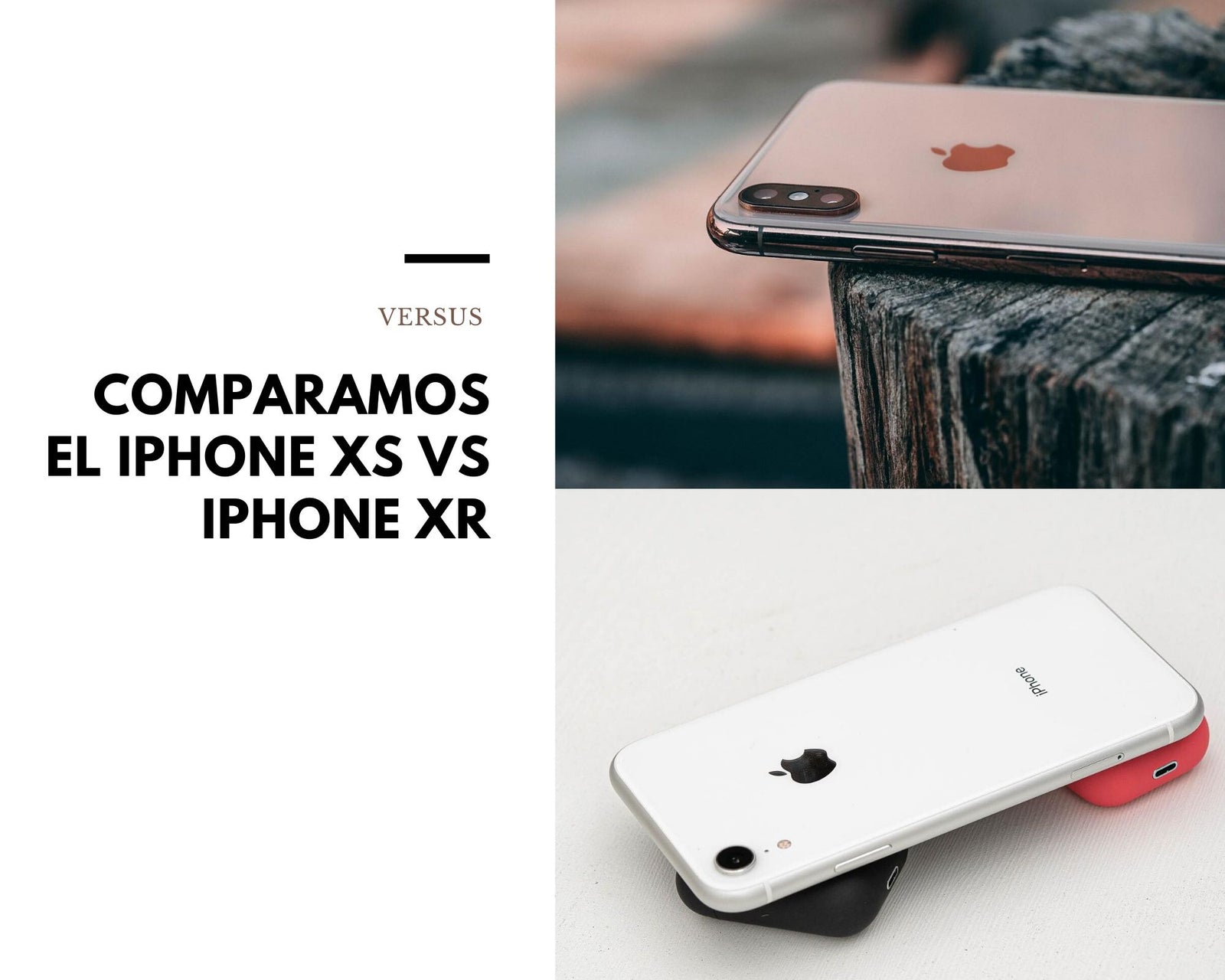
Comparamos el iPhone XR vs iPhone XS Las diferencias son notables a primera vista el iPhone XS esta diseñado con mejores materiales, sin embargo hay algunas diferencias que no son fácil de ver y acá te las dejamos
¿Por qué es Apple iPhone XS es mejor que Apple iPhone XR?
-
40.49% más densidad de píxeles
458ppivs326ppi -
1.85x mayor resolución
1125 x 2436pxvs828 x 1792px -
1GB más memoria RAM
4GBvs3GB -
2x más megapíxeles (cámara principal)
12MP & 12MPvs12MP -
256GB más capacidad de almacenamiento interno
512GBvs256GB -
Descarga de archivos 1.71x más rapida
1024MBits/svs600MBits/s -
17g más ligero
177gvs194g -
0.6mm más fino
7.7mmvs8.3mm
Algunas ventajas del iPhone XR
-
Batería con 10.68% más potencia
2942mAhvs2658mAh -
El tamaño de la pantalla es 5.17% mayor
6.1"vs5.8" - Panel LCD con tres subpíxeles por píxel
- Tiene un panel IPS
- Tiene una cámara frontal con doble lente (o multilente)

Conclusion: Si te importa mucho los materiales y la pantalla del iPhone XS ve por el, ya que posee una mejor definición de pantalla y al momento de tenerlo en tus manos sabras que son materiales de buena calidad, si embargo el iPhone XR es mucho mas grande y aunque sus materiales exteriores no sean de lujo tendrás un teléfono de lujo en tus manos ya que posee especificaciones muy parecidas a las del XS y a un precio mas económico.
Hi các bác, người anh em nào cần nhà cái uy tín để gỡ gạc Game bài đừng bỏ qua chỗ này. Tốc độ bàn thờ: [url=https://homemaker.org.in/#]Link tải Sunwin[/url]. Chúc anh em may mắn.
lightweight screenshot app
Top Screenshot Tool for Windows 10 and 11
If taking screenshots is part of your everyday work, the built-in Windows Snipping Tool quickly starts to feel limiting. Extra steps, no cloud upload, no instant links, and slow interaction make it inefficient for modern use. A proper screenshot tool should be unobtrusive, fast, and designed around a single streamlined flow: capture, upload, and share.
This minimal screenshot tool for Windows 10 & 11 is built exactly for that. Press PrtScn, select any region of the screen, release — and the screenshot is already uploaded. A shareable link is automatically copied to the clipboard. No save dialogs, no folders, no manual uploads.
Region capture is precise and predictable. A clear crosshair selector provides pixel-accurate selection, allowing easy capture of interface elements, code fragments, charts, or partial screens — faster and more reliable than the standard Snipping Tool.
Full-screen capture is equally straightforward. Use Shift + PrtScn to capture the entire desktop instantly. The result is a full-resolution screenshot ideal for documentation, presentations, or bug reporting, with no interruptions or popups slowing you down.
The key advantage is instant cloud upload. All screenshots are uploaded automatically, and the sharing link available within milliseconds. You can paste it directly into messengers, emails, or support tickets without interacting with the file system or external image hosting services.
The tool works quietly from the system tray and remains out of your workflow. Memory consumption remains under 50MB of RAM, launch time is virtually instant, with an installer that is only 2MB. When compared to heavier alternatives like Greenshot, Lightshot, or ShareX, the improvement in speed and responsiveness is instantly noticeable.
Privacy is handled correctly. No advertising, no analytics, no tracking, and no background data collection. Screenshots often contain sensitive information, and this tool handles them appropriately — and no unnecessary processes running behind the scenes.
Hotkeys are fully customizable. You can assign PrtScn, Ctrl+Shift+S, or any shortcut you want, and configure image quality or behavior without heavy settings panels or cluttered menus.
Windows Snipping Tool functions, but it stops after capture. It provides no cloud workflow, no instant sharing, and no performance optimization. This tool replaces it by focusing on what truly matters: capturing data and sharing it without delay.
If you take screenshots every day — for development, support, remote work, or documentation — speed and simplicity are not optional. A modern screenshot tool should feel like a system feature, not an application.
Помощь в написании магистерской диссертации под ключ – https://disser-guru.ru/uslugi/magisterskaya-dissertaciya-pod-klyuch/
Xin chào 500 anh em, bác nào muốn tìm cổng game không bị chặn để chơi Tài Xỉu thì xem thử chỗ này. Đang có khuyến mãi: Đăng nhập BJ88. Chúc các bác rực rỡ.
Dejar un comentario